
From your phone
An agent that finishes while you are out has finished ten minutes ago by the time you sit back down. The phone view is the answer to that: every tab, what it is doing, and a box to reply in, from wherever you are.
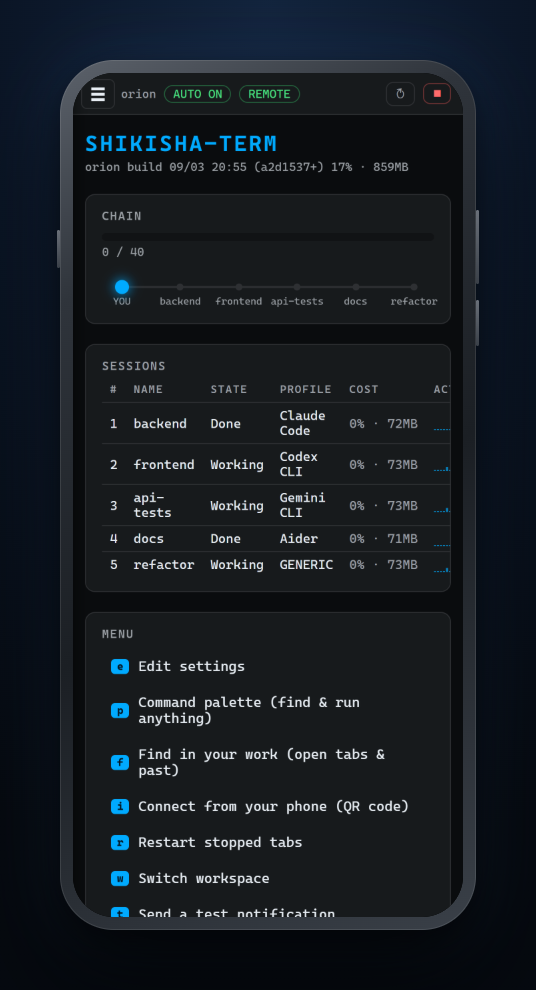
All it takes is Tailscale, which is free, on the PC and on the phone. It is about five minutes, and this page walks through every step with pictures.
What Tailscale is
Section titled “What Tailscale is”Tailscale builds a private network out of your own devices only — your PC, your phone, your laptop — and gives each one an address that exists nowhere else. Traffic is encrypted end to end and goes directly between the two devices. It is free for personal use.
SHIKISHA-TERM does not put your PC on the public internet, and we run no relay server either. The board travels from your PC to your phone along a road Tailscale built for you alone. It never passes through a server of ours, so there is nothing for us to see.
Tailscale does need an account: you sign in with Google, Microsoft, GitHub or Apple, because it has to know which devices are yours. SHIKISHA-TERM itself has no account.
1. Put Tailscale on the PC
Section titled “1. Put Tailscale on the PC”-
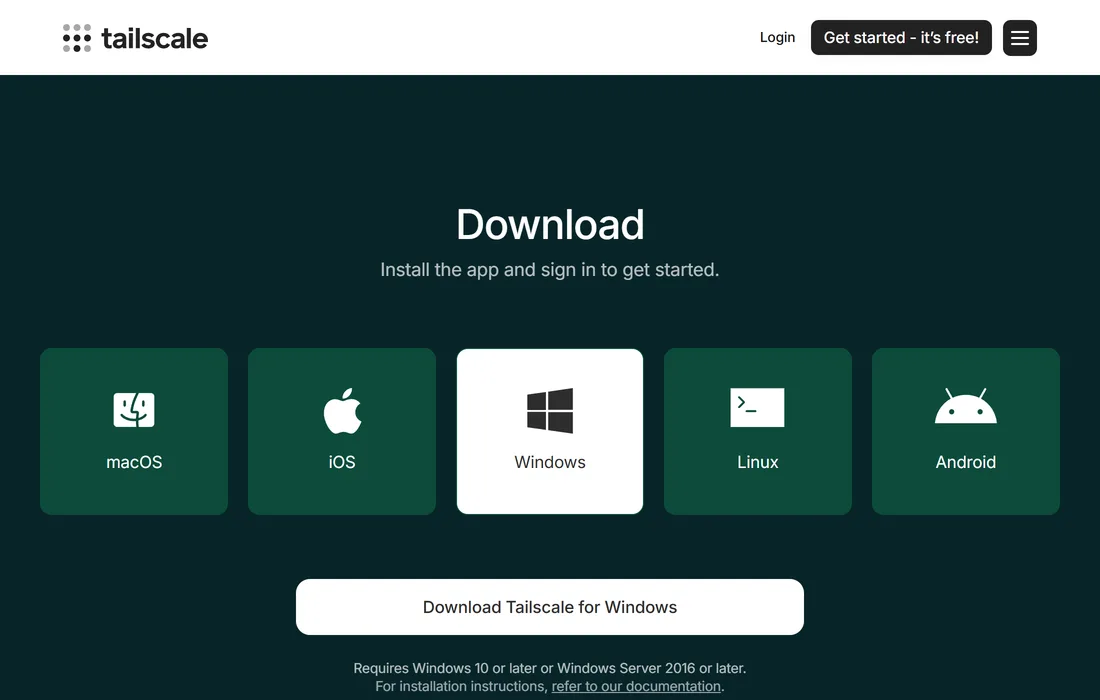
On the PC, open tailscale.com/download/windows and press Download Tailscale for Windows.
-
Open the file you downloaded and install it.
-
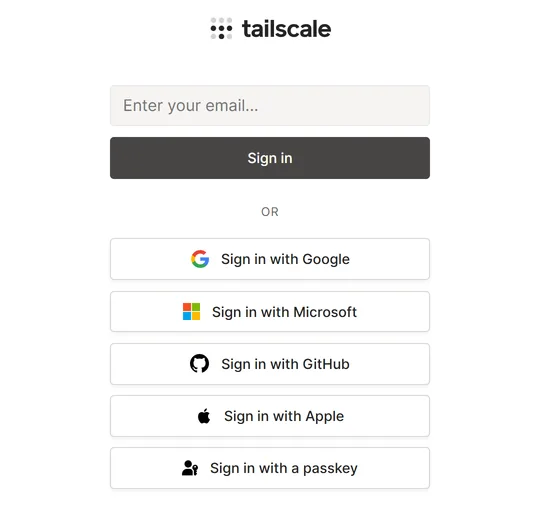
When it is installed, Tailscale’s sign-in page opens in the browser. If it does not, press the Tailscale icon in the notification area at the bottom right of the taskbar and choose Log in.
-
Choose the account to sign in with. Remember which one: the phone signs in with the same account.
-
Once you are signed in, the PC is ready: it is on your Tailscale network.
On a Mac or Linux PC, get the one for that system from tailscale.com/download. Signing in is the same.
2. Put Tailscale on the phone
Section titled “2. Put Tailscale on the phone”Install the Tailscale app from your phone’s store.
-
Open the Tailscale app and press its sign-in button.
-
Sign in with the same account as on the PC. A different account puts the phone on a different network from the PC, and the two cannot see each other.
-
When the phone asks to add a VPN configuration, allow it (Allow on an iPhone, OK on Android). Tailscale joins its private network through the phone’s VPN machinery. Allowing it does not send the rest of the phone’s traffic through Tailscale.
-
When the app shows it is connected and your PC’s name is in its list of devices, you are done.
3. Scan the QR code in SHIKISHA-TERM
Section titled “3. Scan the QR code in SHIKISHA-TERM”-
On the PC, open SHIKISHA-TERM’s settings and choose Remote access in the list on the left.
-
Turn on Let me check status and send instructions from my phone and press Save.
-
The status line reads Listening — Tailscale (100.x.y.z) is available, and the QR code carries a 🔒 Tailscale mark under it. The mark means the address is reachable only by devices on your own Tailscale network.
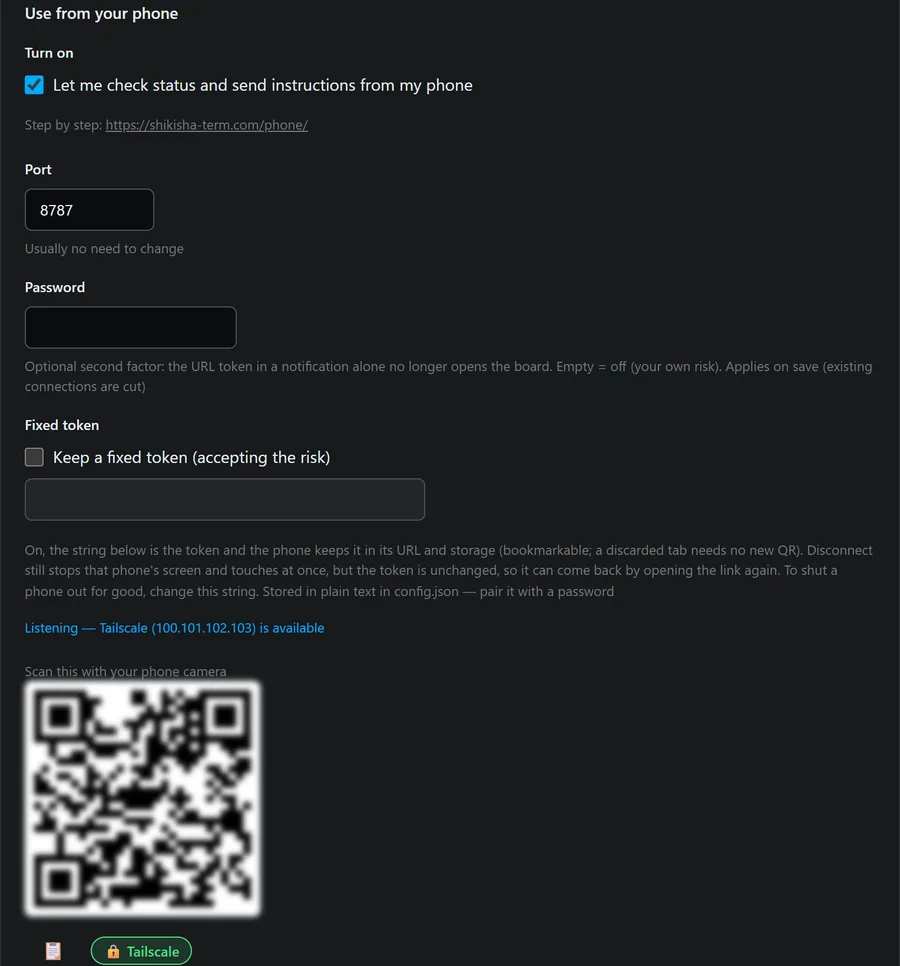
(The QR code in the picture is blurred. A real one holds the key that opens your PC.)
-
Point the phone’s camera at the QR code and open the link it shows.
That is the whole setup. As long as Tailscale is on on the phone, the same board opens on your home Wi-Fi and on mobile data alike.
4. On the home screen, and buzzing in your pocket
Section titled “4. On the home screen, and buzzing in your pocket”Nothing below is needed to start. Come back to it when you want it.
Two things a phone browser will only do for a page it considers secure: keep it on the home screen like an app, and deliver notifications while it is closed. “Secure” here means HTTPS, and a plain address on a private network — however private — does not count.
Tailscale can put a real certificate in front of it. One command, once, in any tab of the terminal:
tailscale serve --bg 8787(If you changed the port in the settings, use that number instead.) Restart
the program and the Remote access card will say Served over HTTPS. The QR
code now carries a https://your-pc.your-tailnet.ts.net address.
Keep it on the home screen
Section titled “Keep it on the home screen”Open the board on the phone and use the browser’s Add to Home Screen. It opens without an address bar, with its own icon, like an installed app.
For that icon to be worth having, the pairing has to outlive a browser tab — otherwise it opens and asks to be paired again, which can only be done by scanning the QR, which opens the browser rather than the app. So the offer only appears with Fixed token turned on in the Remote access settings.
That setting is labelled accepting the risk, and it means it: the access code stops changing and stays in that phone’s storage, so whoever holds the phone can open the board. It is the same trade as staying logged in to anything else. If that is not a trade you want, skip this step — the rest works without it.
Get notified when a tab answers
Section titled “Get notified when a tab answers”In the settings, under Notifications, add a destination and choose Phone. Then, on the phone, open the same settings page and press Register this device. The browser will ask for permission; say yes.
Then set any tab to notify when it answers. What arrives is the tab’s name and the first line of what it said — and tapping it opens a small page with that answer and a box to reply in, so “yes, go ahead” does not mean walking back to the PC.
On Android and on a desktop, notifications do not need the fixed token; only the home-screen icon does.
On iPhone and iPad it is the other way round. Apple delivers web notifications only to something that has been added to the home screen — in a Safari tab the machinery is not there at all. So on an iPhone the step above is the prerequisite for this one, fixed token included. Add it to the home screen, open it from that icon, and press the button there.
The message is encrypted for that phone before it leaves your machine. It goes through your browser vendor’s push service, which can carry it and cannot read it. There is no account of ours in the middle, because there is no server of ours at all.
What this does not do
Section titled “What this does not do”- Your PC has to be running. All of this is a web server inside the program. Nothing is queued for a machine that is off, and nothing of yours is stored anywhere else to be delivered later.
- We see none of it. Read the privacy policy — the short version is that there is nothing for us to see.
Without Tailscale
Section titled “Without Tailscale”When the PC and the phone are on the same Wi-Fi (the same LAN), they connect without Tailscale. While the PC is not on Tailscale, SHIKISHA-TERM listens on its LAN address and puts a ⚠ LAN mark under the QR code.
On a LAN the traffic is not encrypted, and anyone else on that network can see the address. Do not turn this on on a network strangers share — a café, a hotel, a station’s public Wi-Fi.