 SHIKISHA-TERM
Conduct all your AIsfrom one window.
The multitasking terminal for AI-native development. Run Claude Code, Codex, Gemini and local LLMs side by side, and let the screen tell you which one is waiting for you. From your PC, or from your phone.
Or from the command line
winget install --id 9PB8XQVM87Z0 -s msstoreSigned by Microsoft. No account, no telemetry.

Works with
- Claude Code
- Codex
- Gemini CLI
- Aider
- OpenAI
- Anthropic (Claude)
- Google Gemini
- DeepSeek
- xAI (Grok)
- Mistral
- Moonshot AI (Kimi)
- Ollama
- MiniMax
- Groq
- Cerebras
- OpenRouter
- Together AI
- Hugging Face
- NVIDIA NIM
- LM Studio
- Jev (TypeSafe)
- Laya (impossibl)
- Any shell over SSH
From writing codeto conducting AI.
We are not building an IDE. In the AI era, development tools should no longer be about manually editing files; they should be platforms for orchestrating and guiding multiple AIs.
While we refer to our tool as a "terminal," if we were to define it as a new category, it would best be described as an ADE (Agentic Development Environment).
On your PC, as cloud agents, or from your phone.
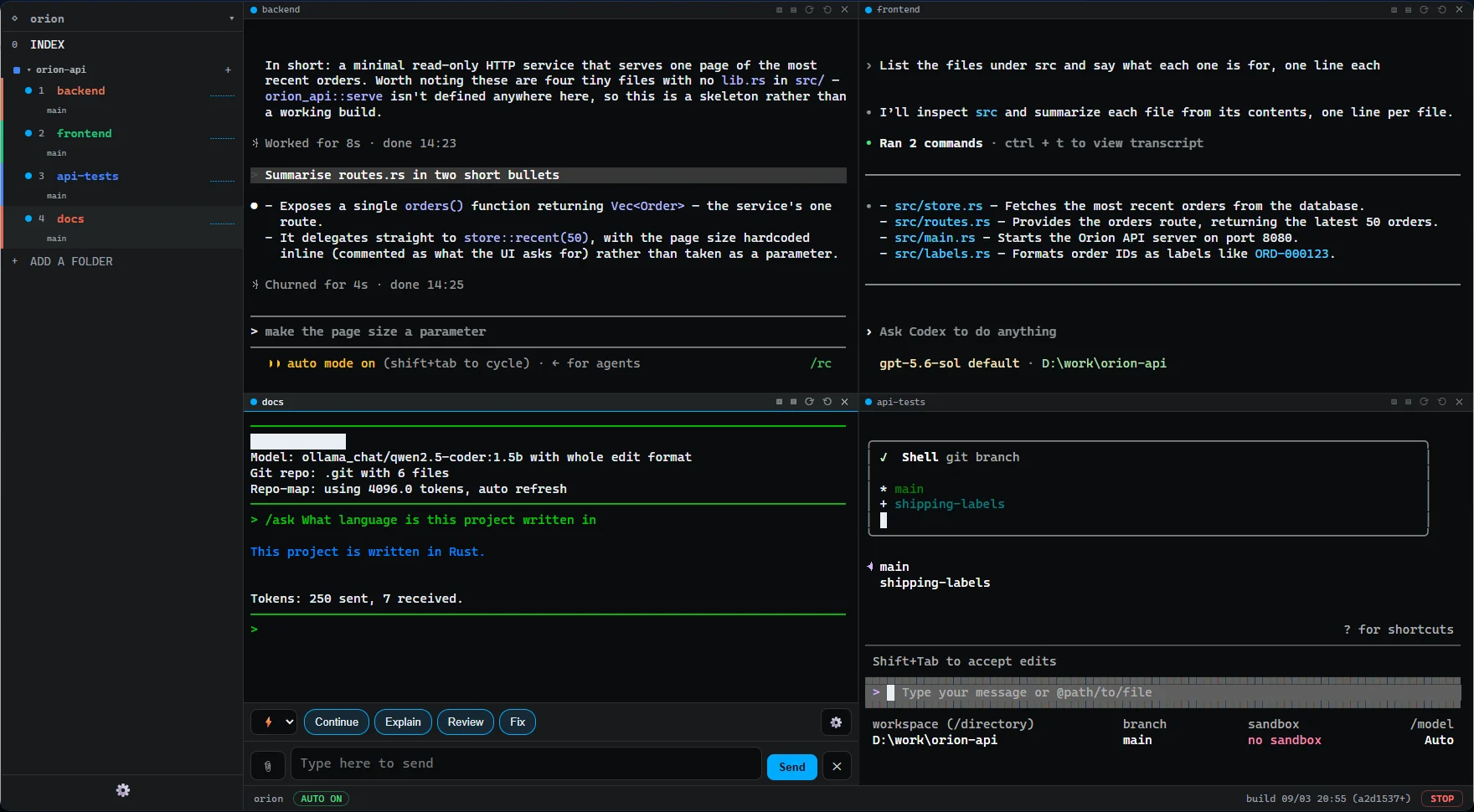
Multiple agents in one window. Instantly spot the ones waiting for you.
Split the screen as many ways as you need and assign Claude Code, Codex, Gemini, Aider, and others to different tasks on the same repository. Every tab shows whether the agent is working, done, or waiting for input, so nothing gets lost.
- Close the app and pick up exactly where you left off
- Works with the AI agents you already use
- Git worktrees: work on multiple branches simultaneously
- Get Slack notifications when tasks complete
YOLO mode, without the worry.
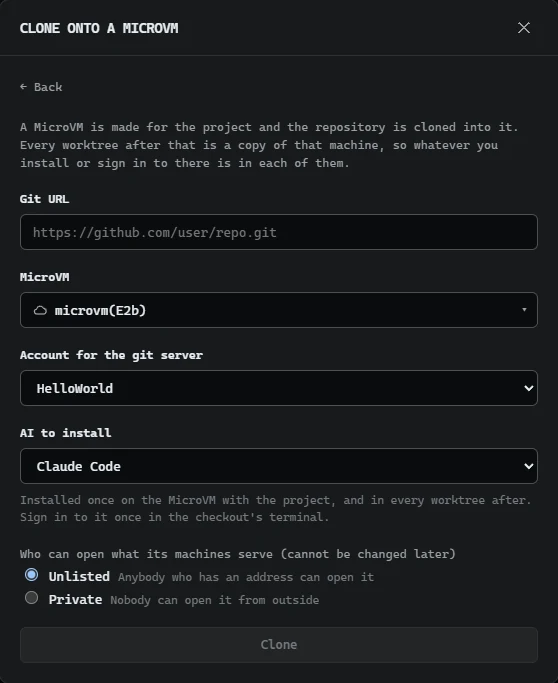
Clone your project into a cloud MicroVM and let your agents work side by side in a secure environment. No matter your PC's specs, you can run as many as you want. Each instance is fully isolated, so an agent that goes off the rails will never touch your local machine.
- Fully isolated for permission-free execution
- Run dozens of agents at once with zero local load
- Consistent environments ready on any PC
- Share a preview with your team via URL
Browser, Git, and SFTP built right in. No need to leave the terminal.
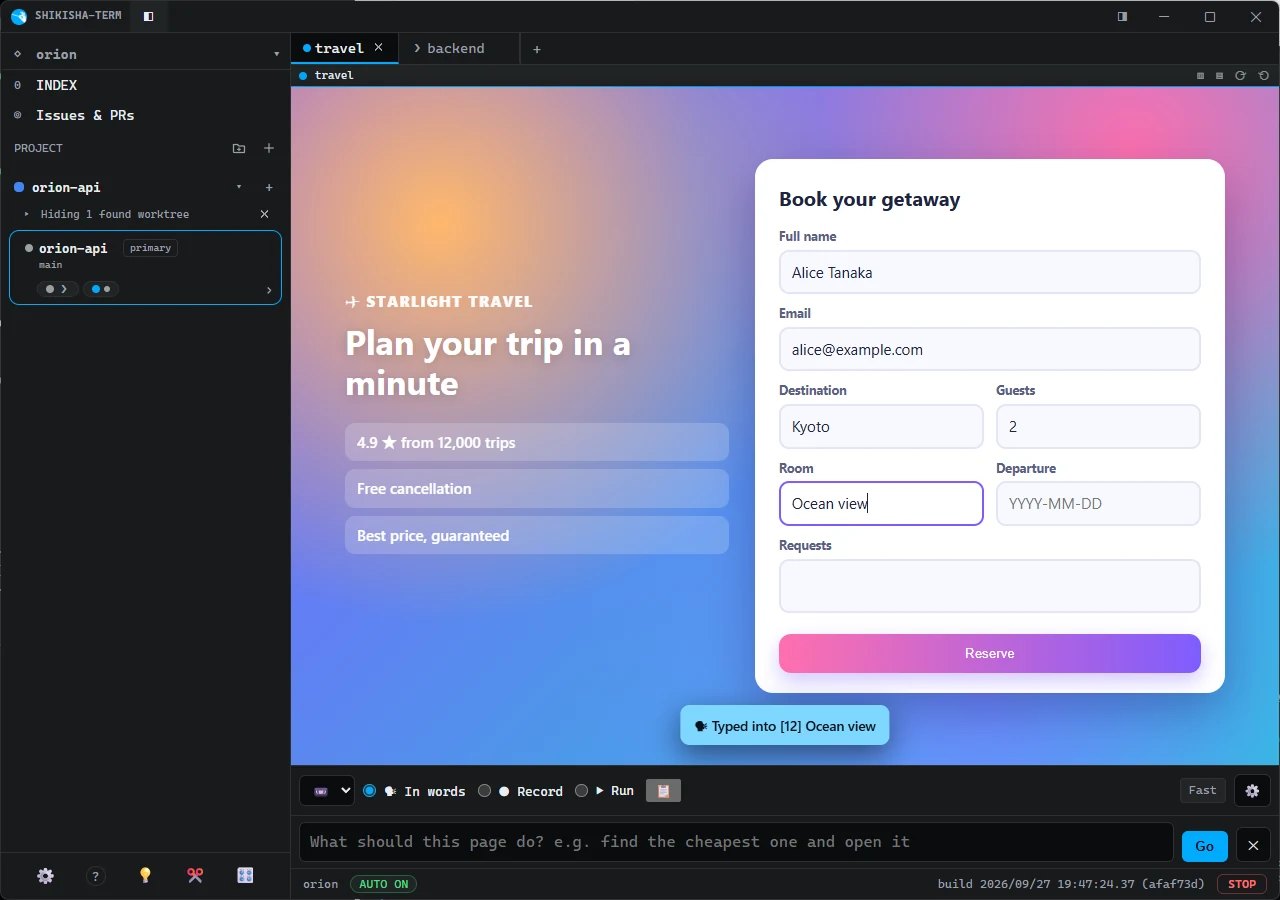
Everything you need to build is right inside the terminal. Check your work in a browser tab and let the AI drive it. Stage partial diffs in the Git panel, and transfer files seamlessly to a server over SFTP.
- AI debugs autonomously in the built-in browser
- Stage partial diffs and let AI write the commit message
- AI-assisted merge conflict resolution
- Transfer files seamlessly via SFTP
See who's “waiting for you” on the go, and answer in one line.
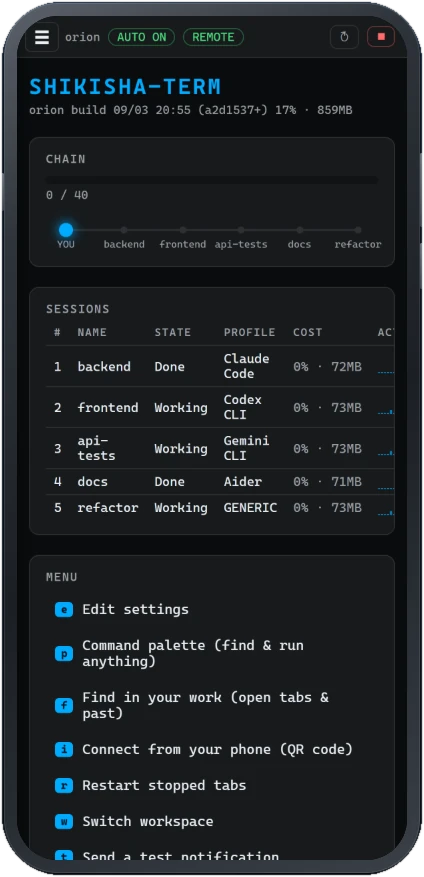
Scan a QR code to see live tab activity and send instructions right from your phone. By the time you return to your desk, the next task is done. Connections are fully private and secure over Tailscale.
- No dedicated app to install
- Push notifications upon task completion
- End-to-end encrypted
- Full terminal control from your mobile device
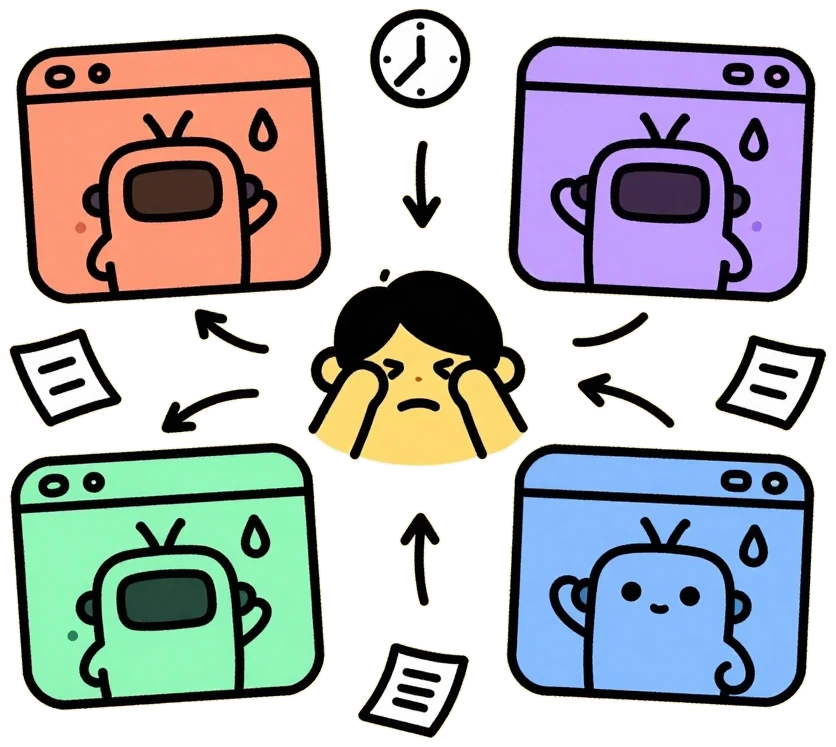
Four agents. Four windows. No idea who is waiting.
Running one terminal AI is easy. Running four is not.
You end up with a window per agent, a lot of alt-tabbing to find the one that stopped, and a lot of copy-pasting between them. The agent that finished ten minutes ago sits there finished, and you find out when you happen to look.
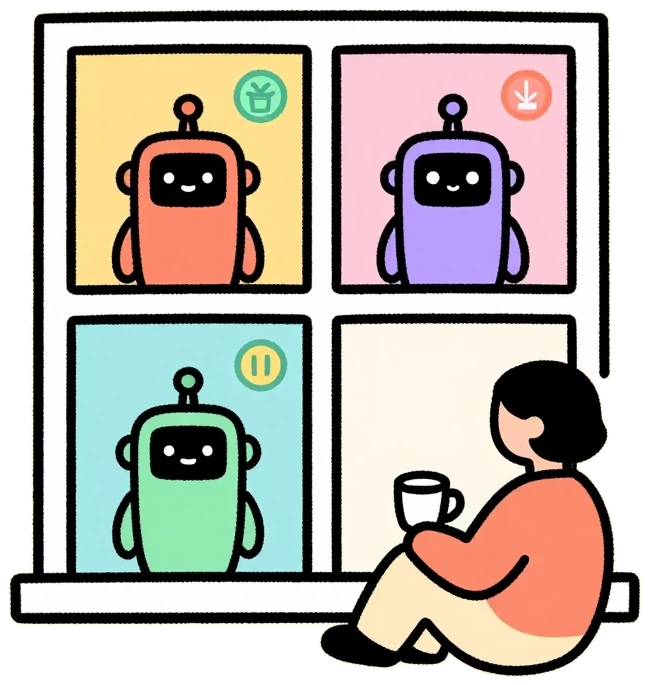
It reads the screen and tells you.
Every tab says whether it is working, done, or waiting for you. The judgement comes from what the tool actually printed, not from one vendor’s API, so it works the same with any command-line tool.
If a new CLI comes out tomorrow, point a tab at it.
The hand-off is the work.

@mention one agent from another, like in a chat app
Type @ in the input bar and pick a tab: the agent in front hands the work to that one, reads its answer and carries on. No more being the copy-paste courier. A long job sends its answer back when it is done.
- Type @ to see the list of tabs
- Agents team up the way people do in a chat
- Hand work to a browser tab and more with @
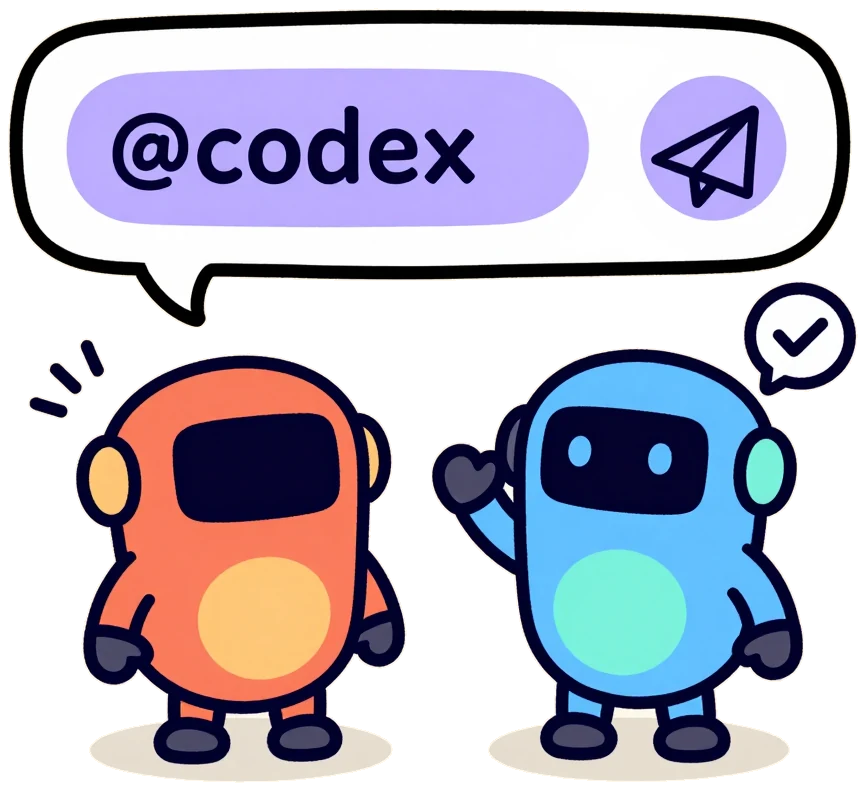
Back and forth until the review comes back clean
“Build this feature, ask @codex to review it, and loop until there is nothing left to fix.” That one line starts the write-and-review loop. The app counts the rounds, and you can step in at any time.
- The app counts the rounds, up to a limit you set
- Step in or stop it whenever you like
- Every exchange stays in each agent's own conversation

Brakes that hold
An emergency stop, per-tab input locks, and a cap on chained hand-offs. Automation touches files and the network only where you granted it.
- The emergency stop is one button
- An input lock on any tab
- No access anywhere you did not grant it

A branch per agent, a folder per branch
An agent that does not know where it is will happily edit the wrong project. Tabs are grouped by working folder, and the settings screen cuts a git worktree so that a branch gets a folder of its own.
- Two agents stop editing one checkout out from under each other
- Session history stays where the work was
- A real terminal: SSH, Docker, WSL, IME input, legacy encodings

You are not always at the desk.
From the train, from a café, from bed: you can see what every tab is doing and send instructions. It takes one QR code.
Over Tailscale, only your own devices can reach it, encrypted, from anywhere. On your own Wi-Fi there is nothing to install.
How to set it up →
Everything on this page can be verified on the spot.
Signed by Microsoft
Published in the Store, so no “Windows protected your PC”. Publisher identity verified: WIRED & ECO, K.K.
No account. No telemetry.
Nothing is collected, and there is no server of ours to send it to.
Read the privacy policy →MIT, and readable
Every line is on GitHub. Your logins, settings and history stay where your CLIs keep them.
Read it on GitHub →Built in public
Each release is built by GitHub Actions from a tagged commit, with a SHA256 beside it.
Releases →If you like it, give it a star on GitHub
Help us remove the warning on the ZIP file. To get a free open-source code signing certificate that silences it, we need to prove the app has a solid reputation. GitHub stars are the best way to show this. Your one-click support will save the next user the hassle.
Star itThree steps. A wizard walks you through the rest.
Install it
From the Microsoft Store, or unzip the portable copy anywhere you like.
Choose your AI
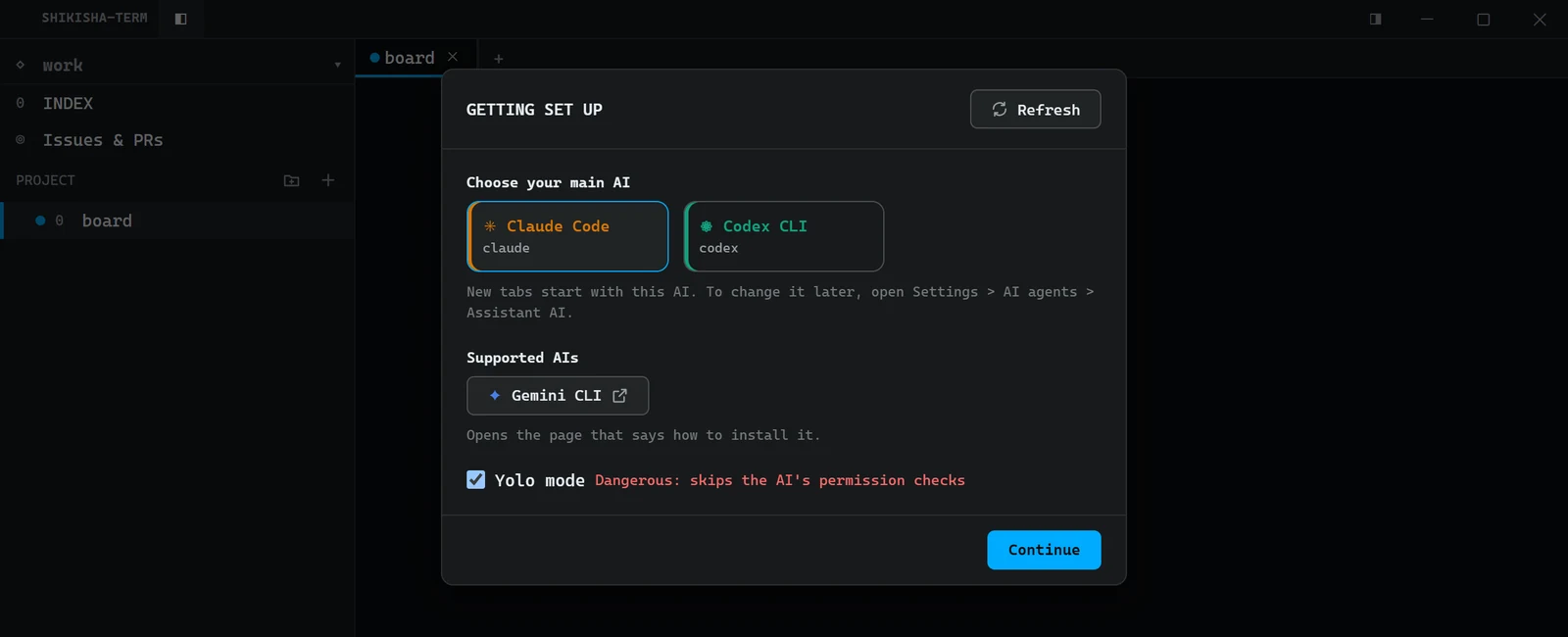
The first launch opens Getting set up. Pick your main AI from the ones on your PC. One you do not have yet opens its install page right there.
Add a project
Pick a folder or clone from a Git URL — on a MicroVM or an SSH server too. Then press where it points, and the AI starts in that folder.
Frequently asked
Can I keep using the subscriptions I already pay for?
Yes. It drives the AI tools already installed on your PC, signed in as they are, on the subscriptions you already pay for. Used that way, it asks for no API key and stores none.
Can I bring my own API key? (BYOK)
Yes. Register an OpenAI-compatible (or TypeSafe-compatible) endpoint as a model connection, and a tab can call that model directly. Bringing your own contract and your own key is what BYOK — bring your own key — means. The key you register is kept on your own PC, and it is never shown again once it is registered.
Does it replace Claude Code or Codex?
No. It runs them. Your logins, settings and history stay exactly where they are. If a new CLI comes out tomorrow, point a tab at it.
Windows only?
Today, yes. It is built on ConPTY, the Windows pseudo-console, rather than on a cross-platform shim, which is also why SSH, WSL, IME input and legacy encodings behave the way they do on Windows.
What does it send anywhere?
By default, nothing. There is no account and no server of ours. Connections happen only where you set them up, and go straight to the party you chose: the AI provider whose key you entered, a webhook you registered, or your own phone. The privacy policy lists every one of them.
Is it a terminal or an IDE?
We don't call this an IDE; we call it a terminal. Today, developers no longer write code—we have evolved into SHIKISHA (Japanese for "orchestra conductor"), directing and harmonizing AI. Because it isn't built for traditional manual file editing, the "IDE" label just doesn't fit. If we had to put it into a specific genre, the most accurate term would probably be an ADE (Agentic Development Environment).
Store copy or portable zip?
The Store copy is signed by Microsoft, shows no warning and updates itself. The zip needs no installing: unzip it anywhere you like -- Google Drive, a USB stick -- and run it. Because it is not code-signed, Windows says “Windows protected your PC” the first time. That is expected; More info → Run anyway gets past it.

Stop hunting for the one that is waiting. Stop being the courier between them.
Get it from the Microsoft StoreFree · Windows 10/11 · portable zip available